
FabFilter Pro-C 3 online help
Table of contents
Go to sectionFabFilter Pro-C 3 Help
Introduction
Using FabFilter Pro-C 3
Full screen mode, resizing and scaling
Presets
Purchasing FabFilter Pro-C 3
Support
Dynamics controls
The left part of the main compressor settings contains the controls that affect the detection path of the compressor.
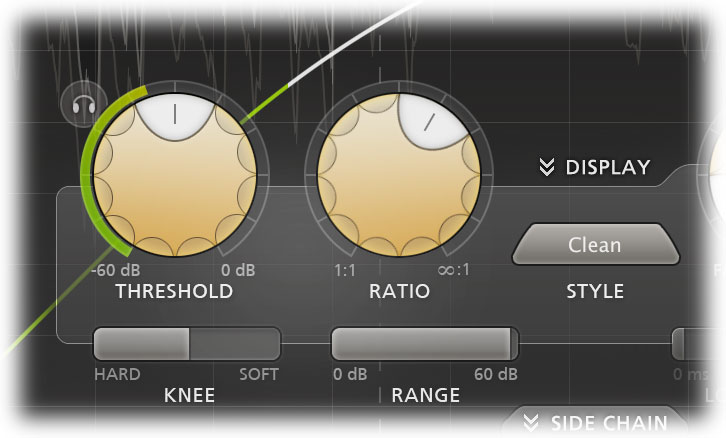
- The Threshold knob determines above which side chain level the gain should be reduced. The circular side-chain level meter around the Threshold knob shows the level of the filtered and possibly stereo-linked signal that is used for detection. This feedback makes it a lot easier to choose a proper Threshold setting.
-
The Auto Threshold button (the AUTO label next to THRESHOLD) toggles auto mode on or off. When enabled, the theshold will work level-independent. So, triggering on a certain signal at different input levels, will result in the same amount of compression. This can be very useful in case of dialog processing, for example, where some parts are often louder than others, while still requiring the same kind of dynamic processing.
As soon as you enable Auto Threshold, a Lock Auto Threshold button will appear. If active, the current Auto Threshold setting is preserved while skipping presets.
- With the Audition Triggering button, at the left top of the Threshold button, you can hear on which parts of the audio Pro-C 3 is triggering and how much compression is taking place. This helps you choose an appropriate Threshold level as well, making sure Pro-C catches the necessary peaks.
- The Ratio knob sets the amount of compression. At a ratio of 10:1, just one dB of output signal above the threshold remains for every 10 dB of input signal above the threshold. If you move the knob completely to the left (1:1), no compression will take place. If you move it completely to the right (infinity), everything above the threshold will be completely compressed away, letting Pro-C act as a limiter.
- The Knee slider below the Threshold knob sets the 'roundness' of the compression around the threshold, which can vary from 0 dB (hard knee) to 72 dB (soft knee). Using a soft knee can help to make the compression more gradual and transparent. With very soft knee settings (> 60 dB), in combination with a fast Attack setting, you can achieve almost saturation-like effects.
- The Range slider below the Ratio knob limits the maximum amount of applied gain change that can be achieved. Compare this to the Ratio slider which scales the dynamics behavior instead.
Tips
- To learn more, read the Basic
compressor controls
 article in our online FabFilter Learn tutorials.
 - Instead of using the incoming audio to trigger the compressor, you can also trigger it using the external side chain, a pulse synched to host tempo or MIDI. See Side chain section.
- The Threshold knob is reverse-linked with the Character Drive slider. This makes it easy to 'trade' compression for saturation in one movement.
- Due to the nature of the Vari-Mu algorithm, changing the side chain level slider (i.e driving the compressor less or more), has a very different effect than adjusting the threshold. Do experiment with it, as it really does open up a whole world of different flavors.
Next: Time controls